Can't Log In
Having trouble getting into your account? Here are the most common causes and how to fix them.
Forgot your password
Section titled “Forgot your password”-
Tap Forgot Password
On the login screen, tap the Forgot Password link below the sign-in button.

-
Enter your email address
Enter the email address associated with your account and tap submit.
-
Check your inbox
You’ll receive a password reset email. Check your spam or junk folder if it doesn’t arrive within a few minutes.
Signed up with Apple, Google, or Facebook
Section titled “Signed up with Apple, Google, or Facebook”If you originally signed in using a social account, you can’t log in with an email and password — you need to use the same social login button you used when you signed up.
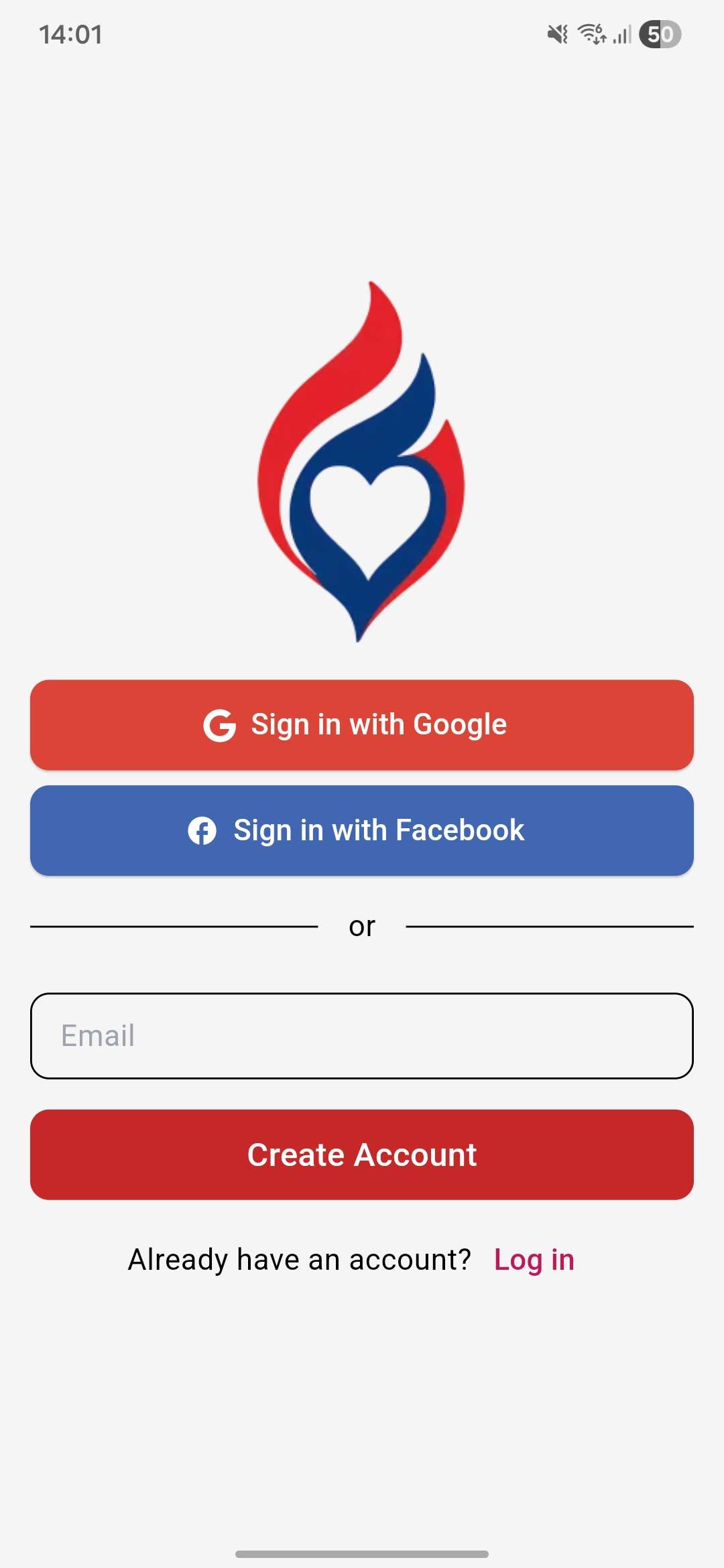
On the login screen, tap:
- Sign in with Apple — if you signed up with your Apple ID
- Sign in with Google — if you signed up with your Google account
- Sign in with Facebook — if you signed up with Facebook
Your password isn’t being accepted
Section titled “Your password isn’t being accepted”Passwords must be at least 8 characters. If you’re sure you’re entering the right password but it isn’t working, use the Forgot Password flow to reset it.
App says your account doesn’t exist
Section titled “App says your account doesn’t exist”Make sure you’re entering the email address you signed up with. If you’re not sure which email you used, try each one you might have used, or contact support.
Sign in with Apple issues
Section titled “Sign in with Apple issues”On iOS, if Sign in with Apple isn’t working:
- Check that you’re signed in to your Apple ID in device Settings → Apple ID
- Make sure you haven’t hidden your email from LatinFlare in your Apple ID settings (Settings → Apple ID → Password & Security → Apps Using Apple ID)
Still can’t get in?
Section titled “Still can’t get in?”Contact us at latinflare@support.ruvikgroup.com with your account email address and a brief description of what’s happening. We’ll get you back in.