Changing Your Location
LatinFlare uses your location to show you people nearby. You can let the app use your device’s GPS, or set your location manually to discover people in a different city or country.
Using GPS (automatic)
Section titled “Using GPS (automatic)”When you first open the app, you’ll be asked for location permission. Allowing this lets the app automatically keep your location up to date.
If you previously declined and want to enable it:
-
Open your device settings
Go to your phone’s Settings app.
-
Find LatinFlare in your app list
Navigate to Apps (Android) or scroll to LatinFlare (iOS).
-
Enable location access
Set location permission to While using the app or Always.
Setting your location manually
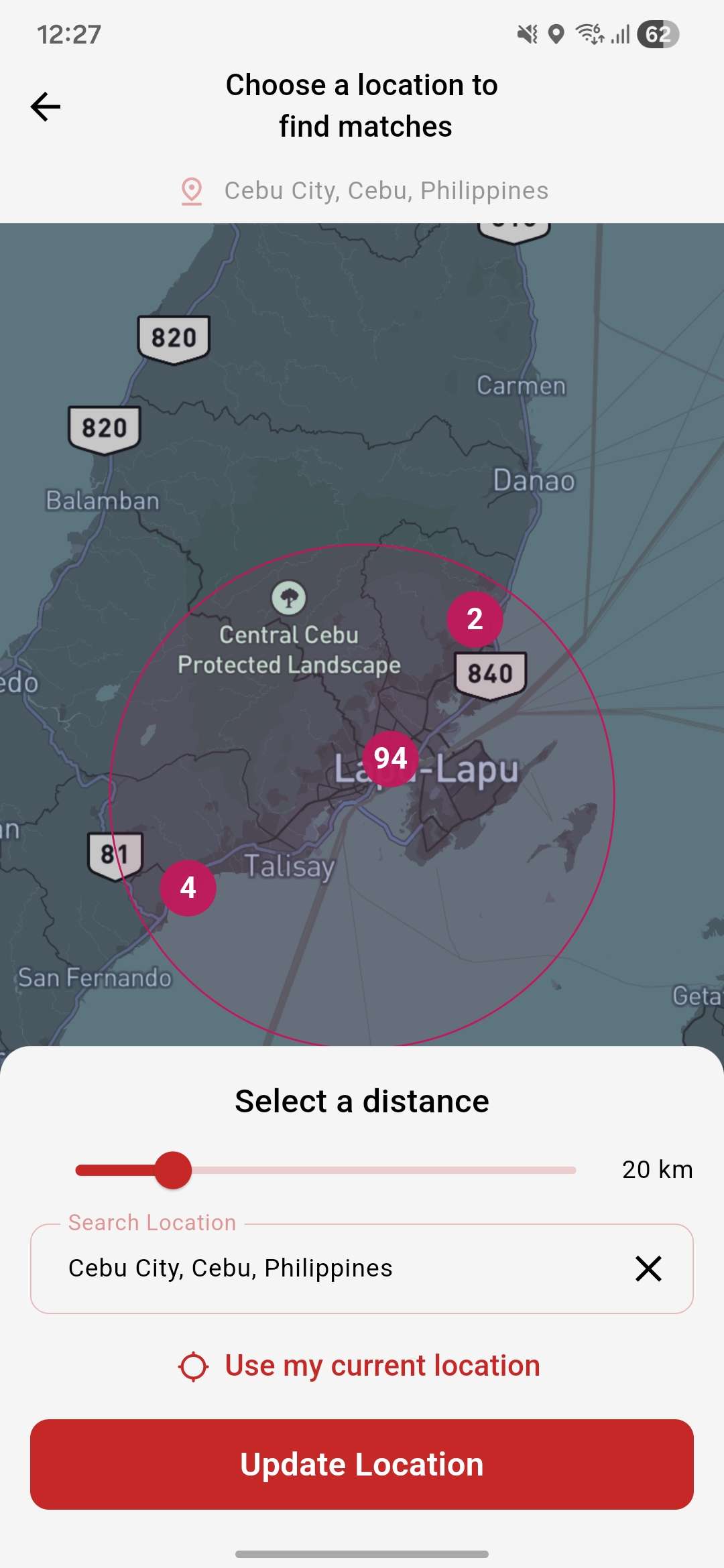
Section titled “Setting your location manually”You can set your location to anywhere in the world — useful if you’re travelling, planning a trip, or want to connect with people in a specific city.
-
Open location settings
Tap the location icon on the Explore page.\
.jpg)
-
Search or pin your location
Use the search bar to find a city or address, or pan the map and tap to drop a pin on your desired location.
-
Confirm your location
Tap confirm to update your location. You’ll now see people near your chosen location.
Setting your search distance
Section titled “Setting your search distance”You can adjust how far away you want to search from your location using the distance slider in your preferences. The default is 20 km.